QStudio Example Charts - Light
QStudio provides a powerful and flexible charting system designed to make data visualization effortless. With a wide range of chart types—from time series, line, bar, and area charts to heatmaps, scatter plots, histograms, and more—qStudio makes it easy to explore and present your data with clarity. Every chart supports multiple visual themes, allowing you to match your preferred style or dashboard aesthetic. In addition, qStudio offers extensive configuration options, including colors, series settings, axis controls, tooltips, and layout adjustments, giving you full control to tailor each chart to your analysis and presentation needs.
For each of the chart types their data format expected together with some examples are shown below
Themes: dark-finance, dark-original, dark, excel, high-contrast, light, powerbi, tabular
 time-series
 step-plot
 area-chart
 bar-chart
 bar-chart-stacked
 bubble-chart
 candlestick
 heat-map
 histogram
 line-chart
 pie-chart
 scatter-plot
 data-table
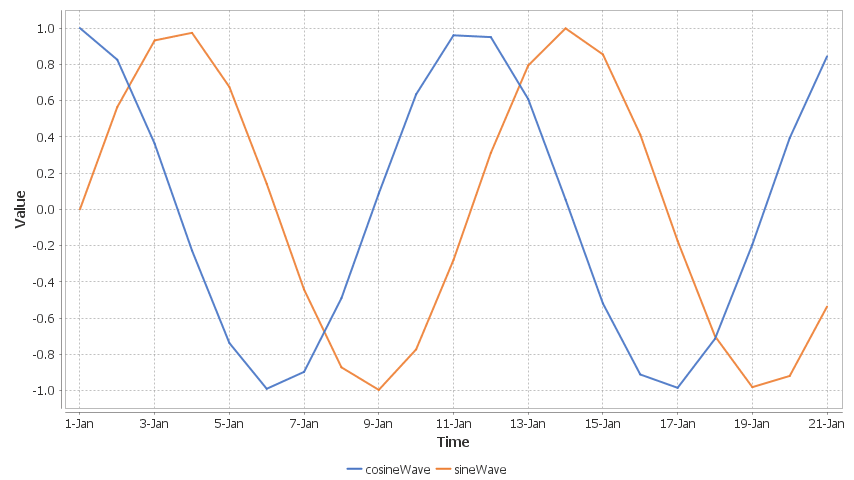
Time Series
Format
- The first date/time column found will be used for the x-axis.
- Each numerical column represents one time series line on the chart.
Day Sines
A sine/cosine wave over a period of days.

Step Plot
Format
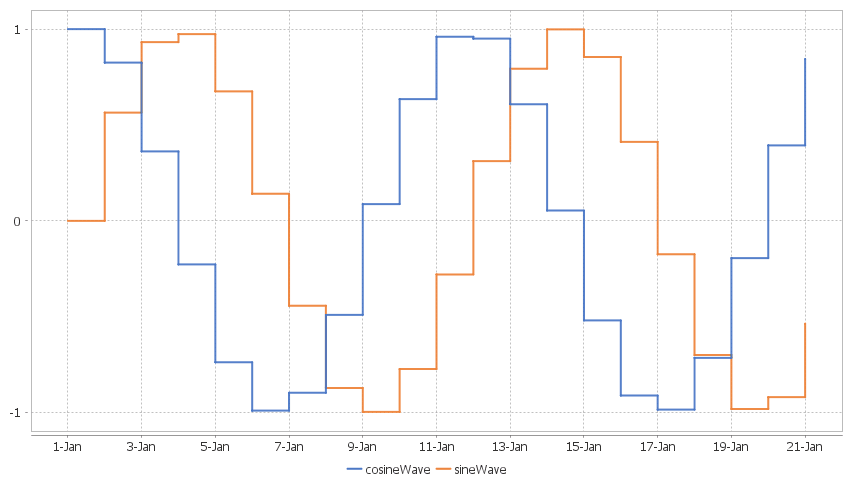
- The first date/time column found will be used for the x-axis.
- Each numerical column represents one time series line on the chart.
Day Sines
A sine/cosine wave over a period of days.
Area Chart
Format
- The first string columns are used as category labels.
- Whatever numeric columns appear after the strings represents a separate series in the chart.
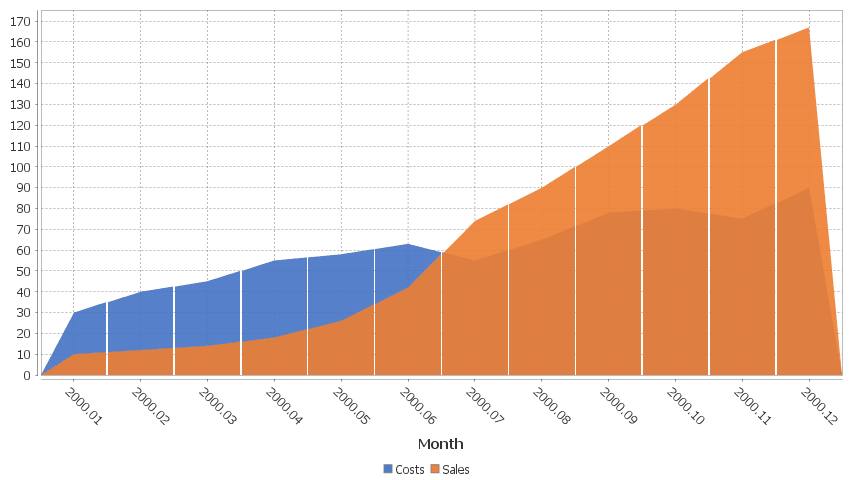
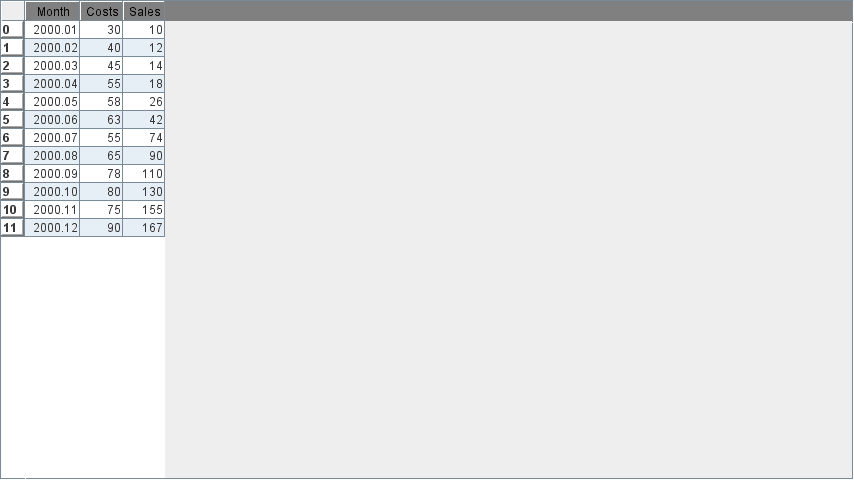
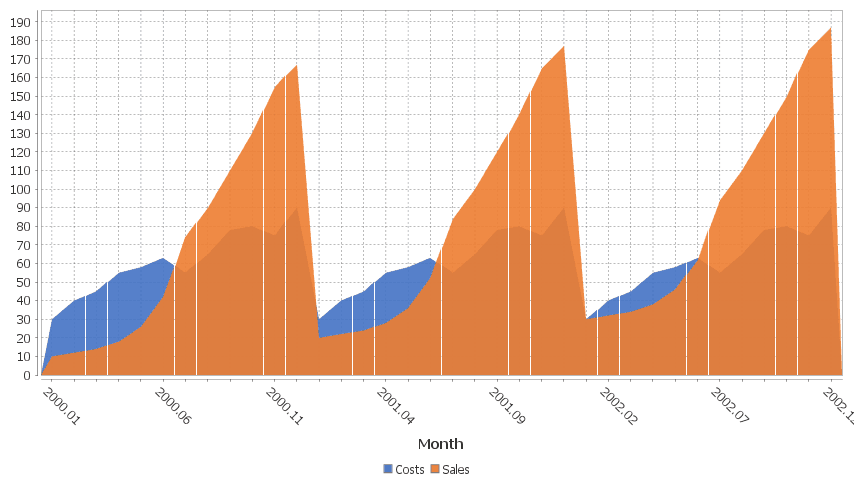
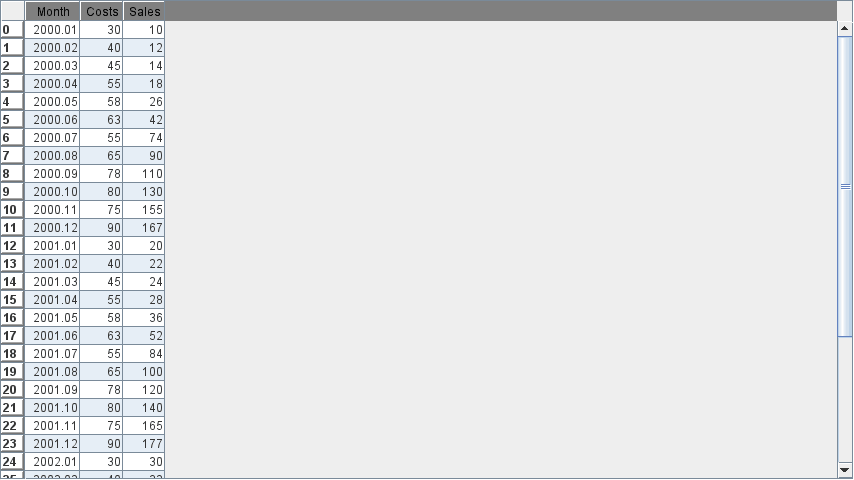
Multiple Series with Time X-Axis
2 series are shown, one for Sales, One for Costs. x-axis is in months.
Single Category
One number column generates one series.


Multiple series
Each column is a new series/colored bar.

Multiple series with many categories on the X-axis
Each column is a new series/colored bar. When there are a lot of categories, some labels are hidden.
Bar Chart
Format
- The first string columns are used as category labels.
- Whatever numeric columns appear after the strings represents a separate series in the chart.
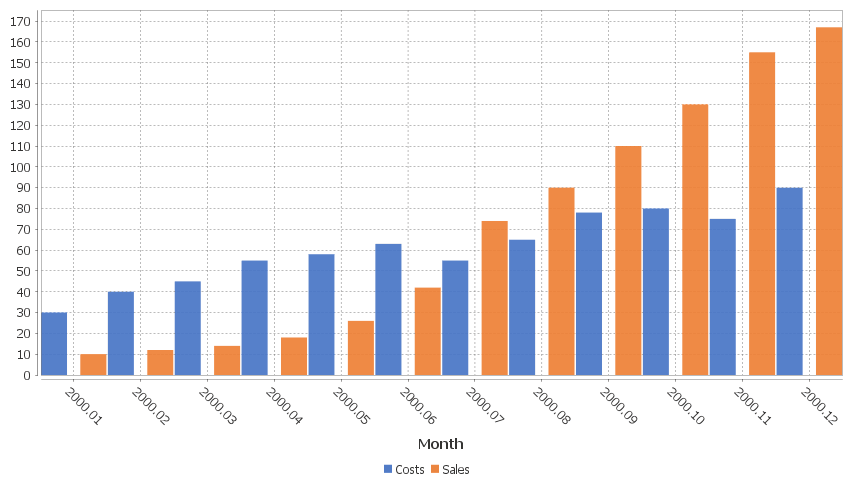
Multiple Series with Time X-Axis
2 series are shown, one for Sales, One for Costs. x-axis is in months.
Single Category
One number column generates one series.

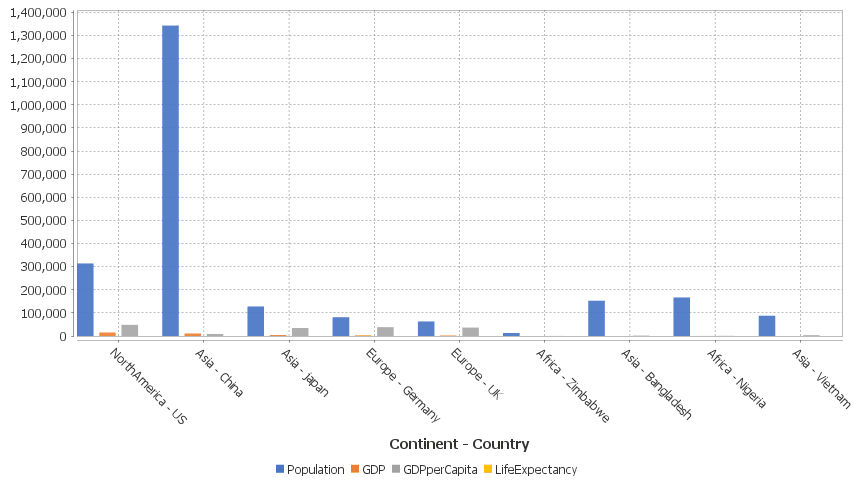
Multiple series
Each column is a new series/colored bar.
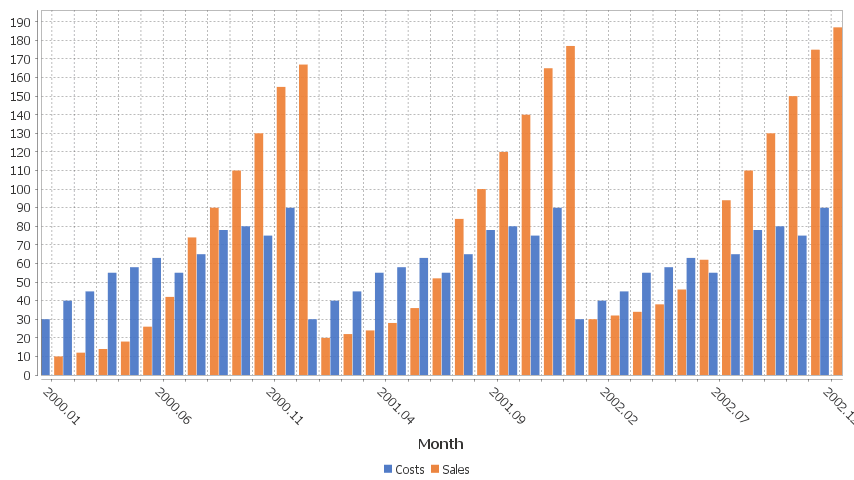
Multiple series with many categories on the X-axis
Each column is a new series/colored bar. When there are a lot of categories, some labels are hidden.
Bar Chart Stacked
Format
- The first string columns are used as category labels.
- Whatever numeric columns appear after the strings represents a separate series in the chart.
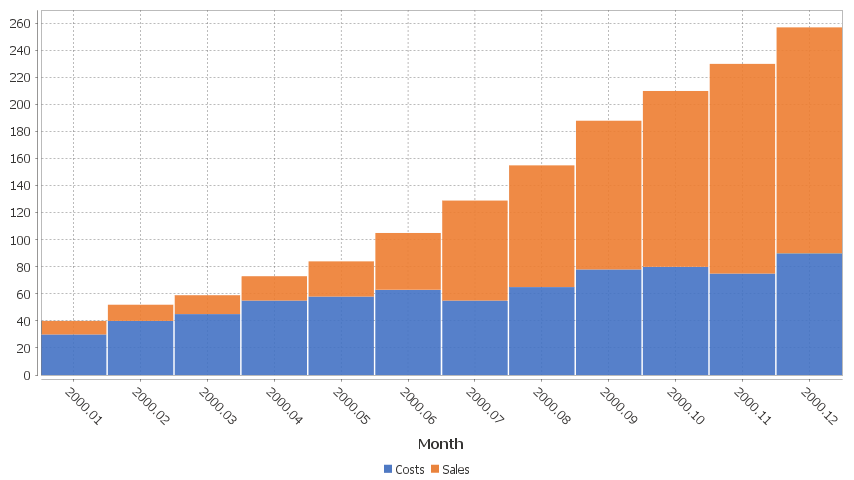
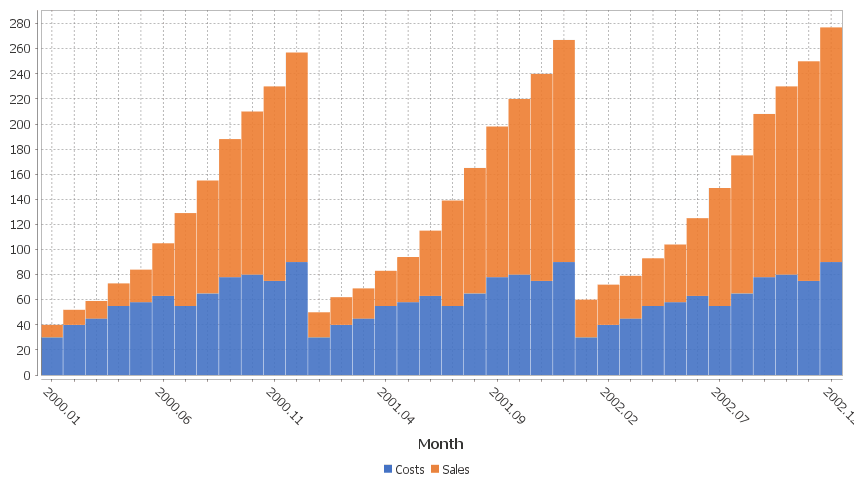
Multiple Series with Time X-Axis
2 series are shown, one for Sales, One for Costs. x-axis is in months.
Single Category
One number column generates one series.

Multiple series
Each column is a new series/colored bar.
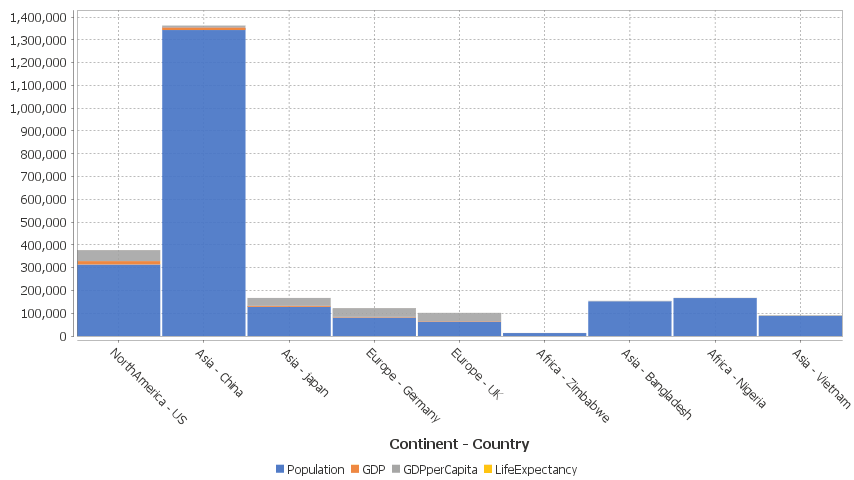
Multiple series with many categories on the X-axis
Each column is a new series/colored bar. When there are a lot of categories, some labels are hidden.
Bubble Chart
Format
- The first string columns are used as category labels.
- There must then be 3 numeric columns which are used for x-coord, y-coord, size in that order.
Single series
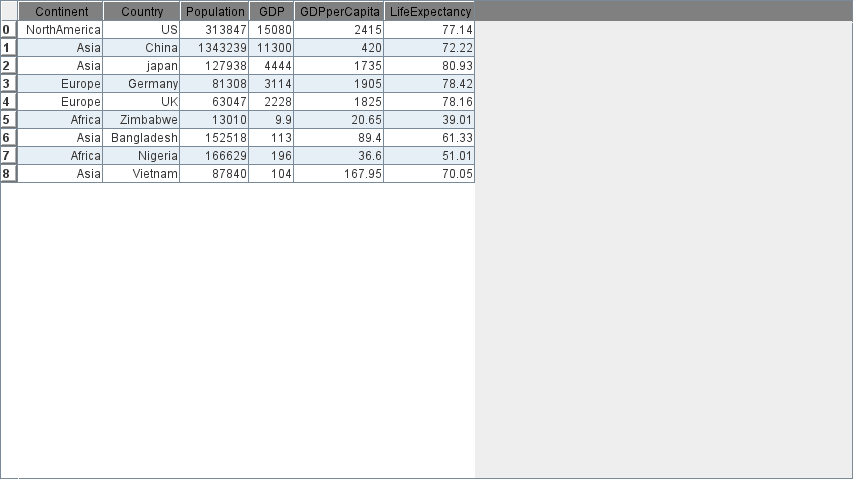
The three columns are used for x-axis,y-axis and size respectively. Notice the GdpPerCapita column has been divided to make it similar sized to the othercolumns so that the bubbles are a sensible size.


Candlestick
Format
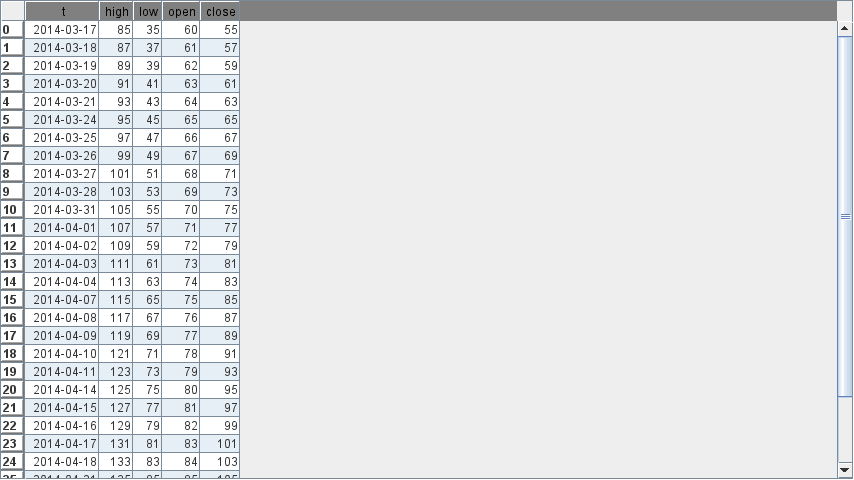
- The table should contain columns labelled open/high/low/close/volume
- but must atleast contain high/low to allow it to be drawn.
- If you send only daily weekdays, weekend values are hidden.
Prices going up
A Candlestick showing price movements and fluctuating volume over a period of 6 weeks


Rising Prices, No Volume
A candlestick showing only price movements, no volume column.

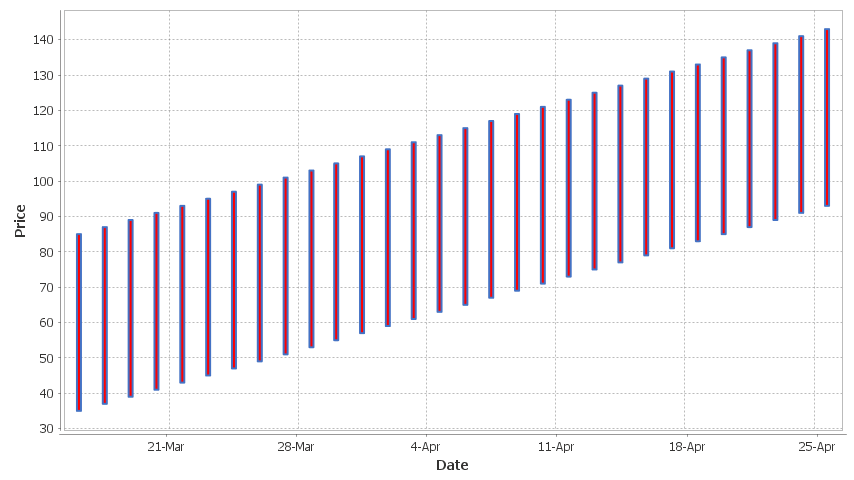
Rising Prices, Only High Low Columns Shown
A candlestick showing only high low prices.

Heat Map
Format
A HeatMap works best with 1+ string columns.
- Starting from the left each string column is taken as one nesting level
- The first numerical column will be taken as size, the second as colour.
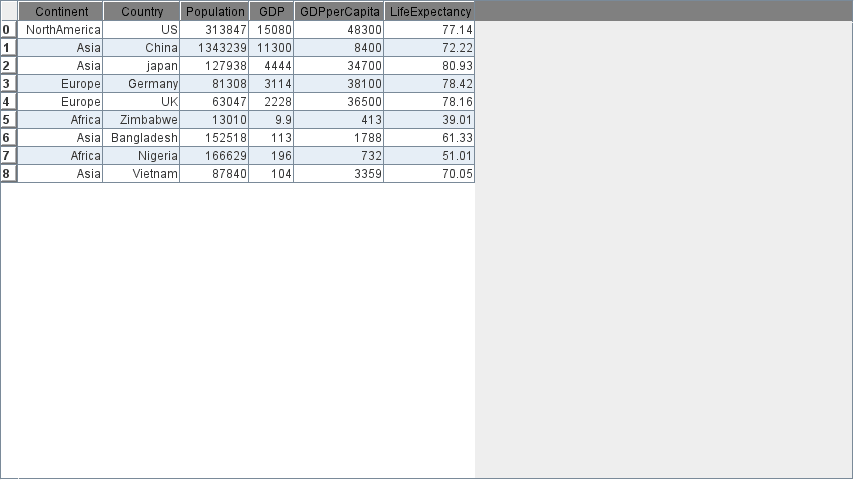
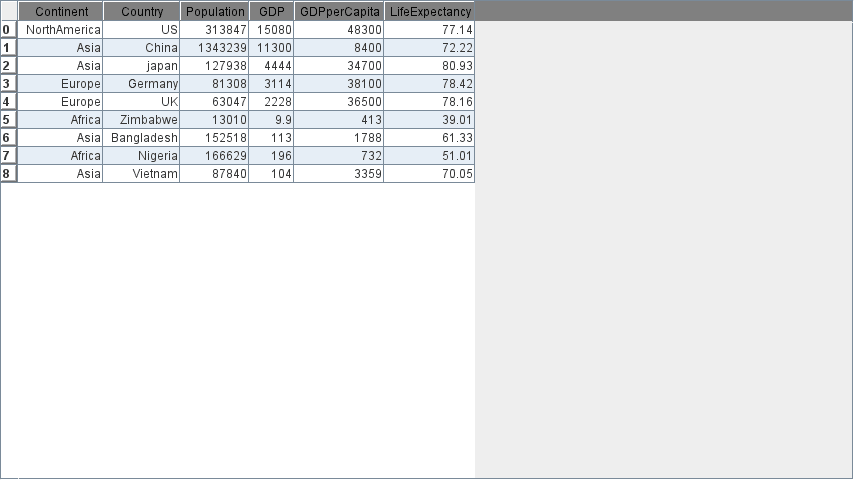
Country GDP's
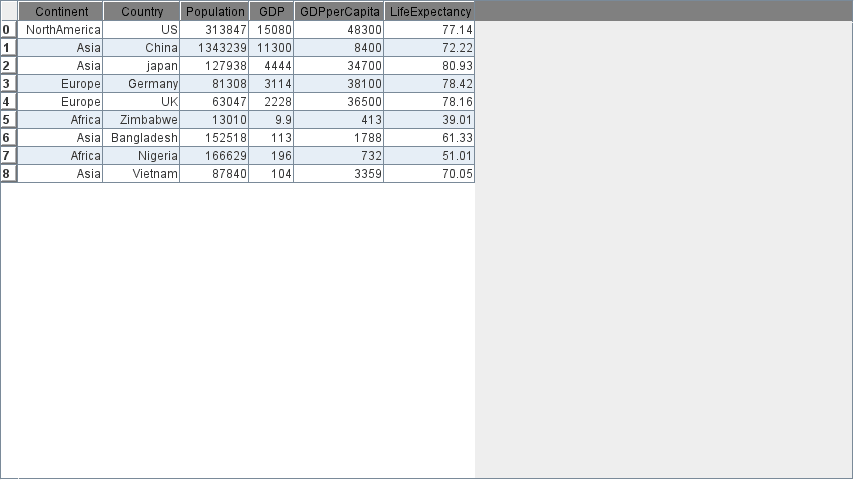
The continent column is a top-level branch, the country column becomes leafs.The first two columns are GDP and GDP per Capita which become the size and color of the leafs respectively.

Histogram
Format
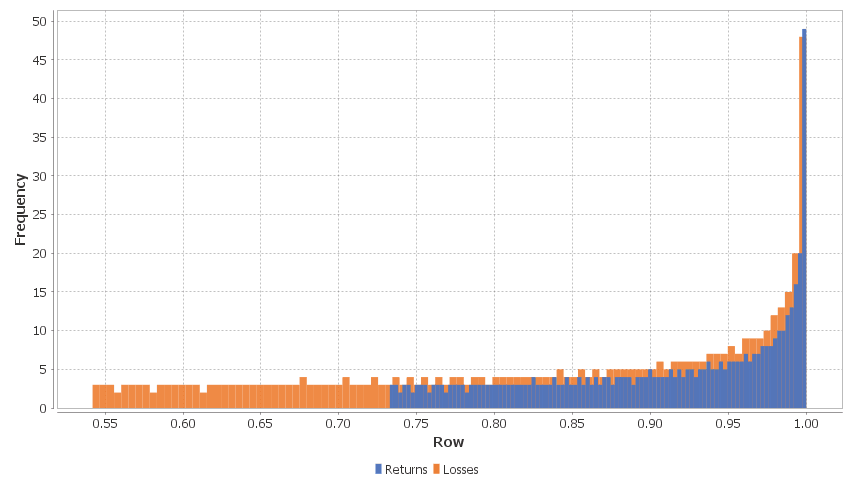
Each Numeric column represents a separate series in the histogram. The series values are placed into buckets and their frquency tallied.
Profit Distribution
Distribution of Returns and Losses

Line Chart
Format
- The first string columns are used as category labels.
- Whatever numeric columns appear after the strings represents a separate series in the chart.
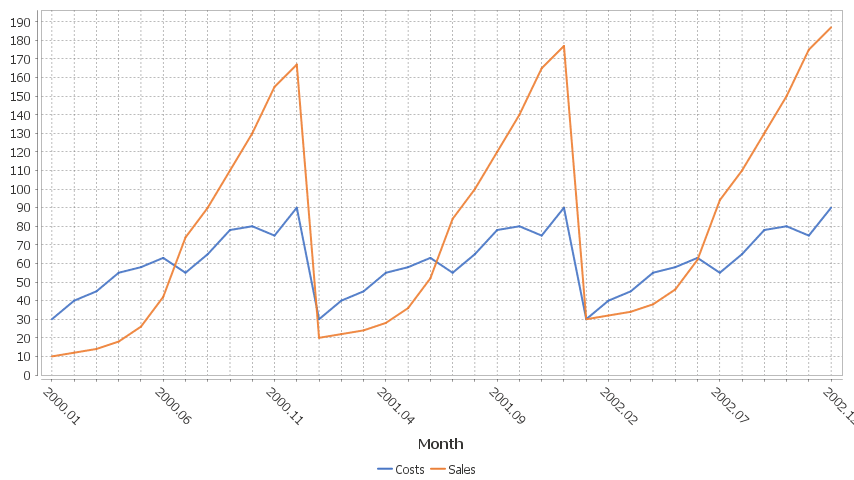
Multiple Series with Time X-Axis
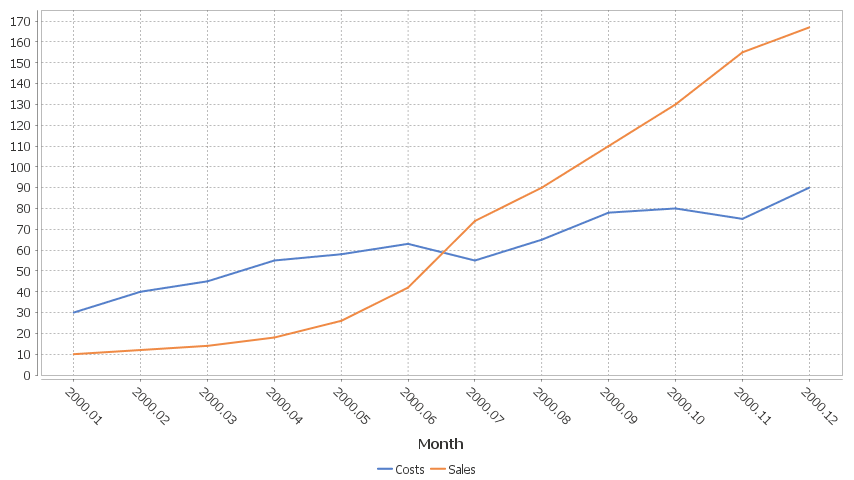
2 series are shown, one for Sales, One for Costs. x-axis is in months.
Single Category
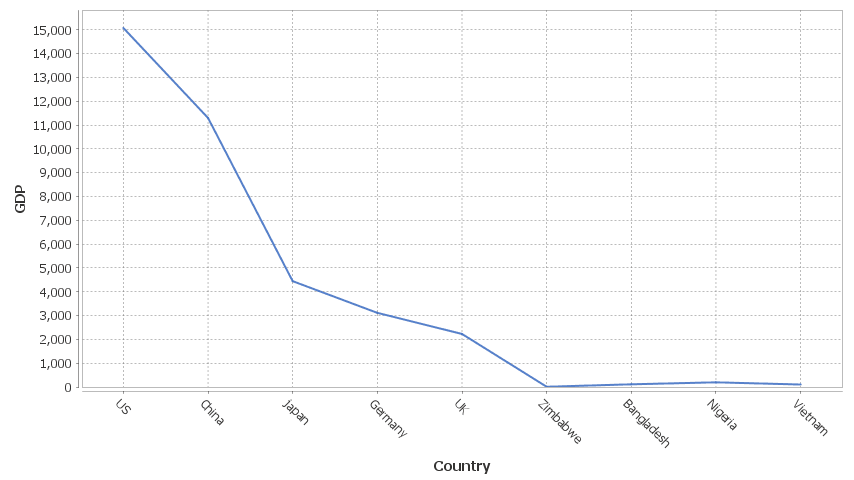
One number column generates one series.
Multiple series
Each column is a new series/colored bar.

Multiple series with many categories on the X-axis
Each column is a new series/colored bar. When there are a lot of categories, some labels are hidden.
Pie Chart
Format
- Each numerical column represents a pie chart.
- The title of each pie chart will be the column title.
- Each row will be a section of the pie and will use the row title as a label.
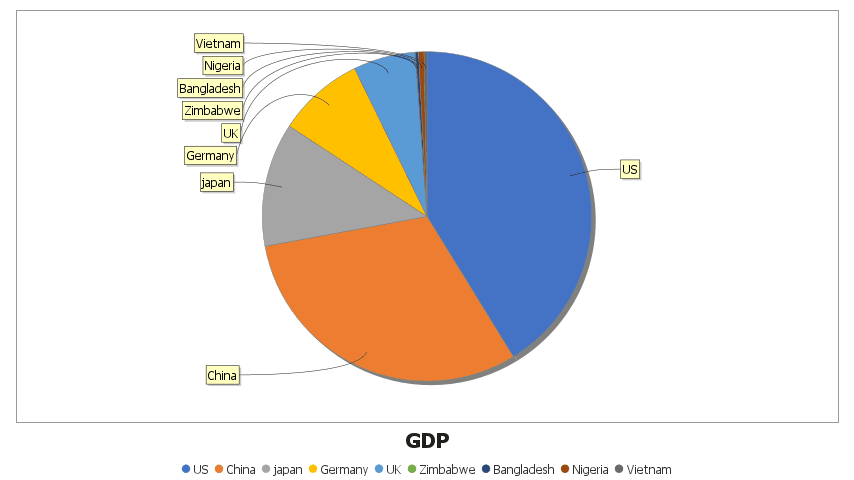
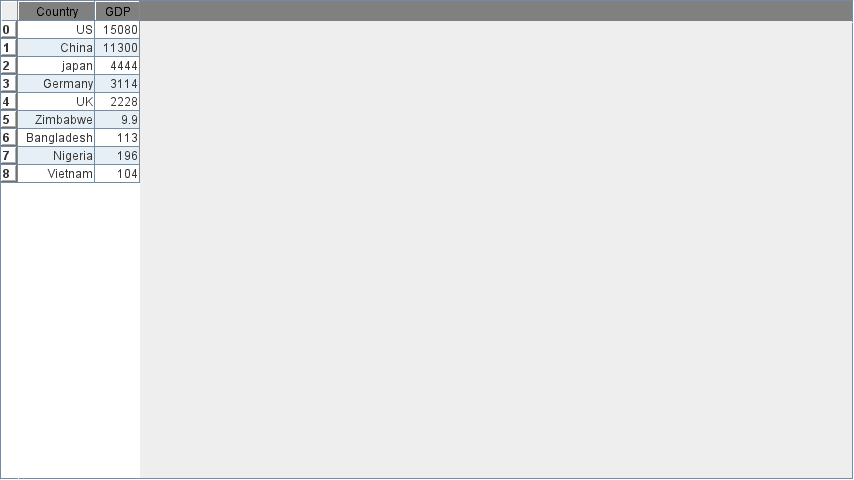
Single Pie Chart Example
A single numerical columns gives a single pie chart for that column.
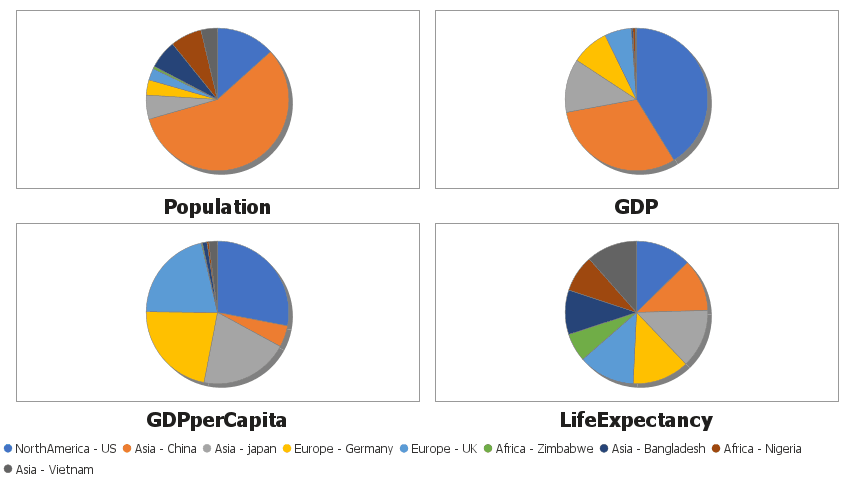
Multiple Pie Chart Example
Using multiple numerical columns gives a pie chart for each column.
Scatter Plot
Format
- Two or more numeric columns are required.
- The values in the first column are used for the X-axis.
- The values in following columns are used for the Y-axis.
- Each column is displayed with a separate color.
Country Population and GDP
The first column GDP is used for the x-axis. The subsequent columns are then plotted against that x axis as separate colored series.

Day Sines
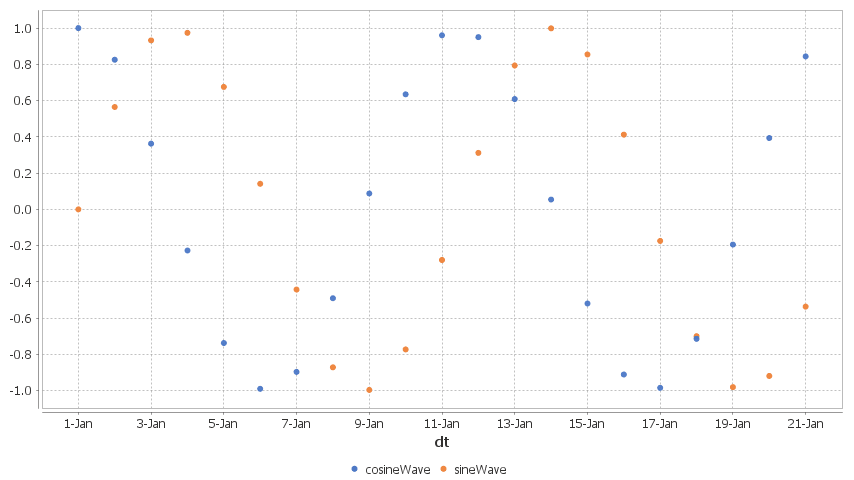
A sine/cosine wave over a period of days.
Data Table
Format
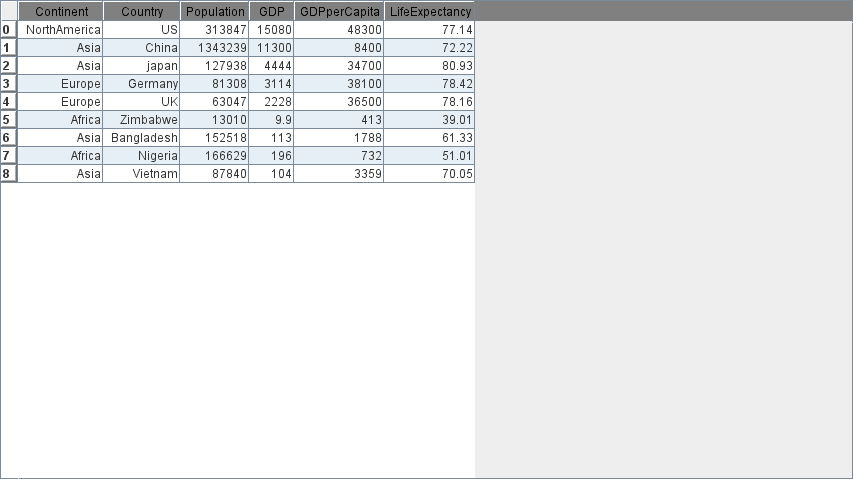
Any format of table is acceptable, all rows/columns will be shown as a plain table.
Many Columned Table
All rows/columns will be shown as a plain table.