

Remote SSH Folder
Contents
Remote SSH Folder
QStudio can open folders on remote servers over SSH/SFTP. Files are downloaded to a local cache and displayed in the file tree. When you save a file, it is automatically uploaded back to the server. This lets you browse, edit and lint q code on remote kdb+ servers directly from QStudio.
Key features:
- Parallel downloads using 8 SFTP channels for fast initial sync
- Automatic upload on save with conflict detection
- SSH key authentication (OpenSSH and PuTTY formats)
- Respects
.gitignorepatterns on the remote server - Skipped files reported after sync
Opening a Remote Folder
Go to File > Open Remote SSH Folder...
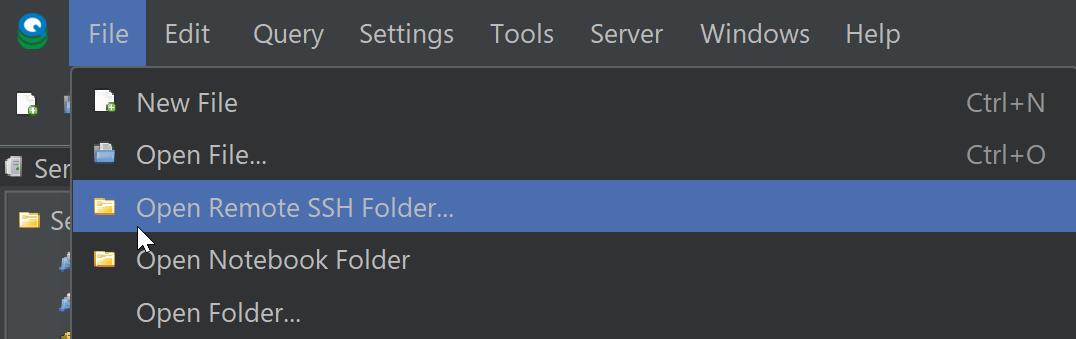
This opens the connection dialog where you enter the server details.
Connection Settings
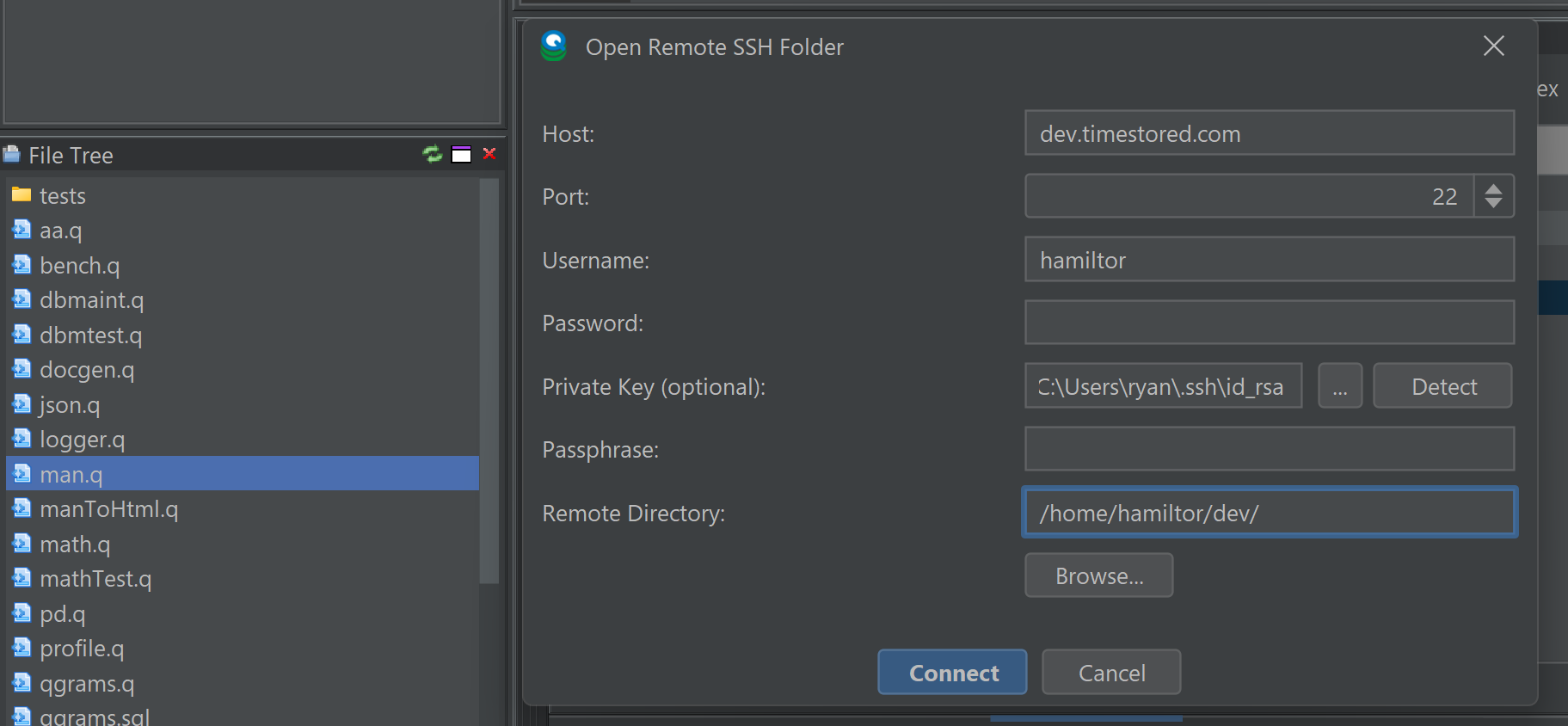
| Field | Description |
|---|---|
| Host | Hostname or IP address of the remote server |
| Port | SSH port (default 22) |
| Username | Your SSH username |
| Password | SSH password (leave blank if using key authentication) |
| Private Key | Path to SSH private key file (optional) |
| Passphrase | Passphrase for encrypted private keys |
| Remote Directory | The folder path on the remote server to sync. Click Browse to select interactively. |
Click Browse... next to the Remote Directory field to interactively browse the server's directory tree. If the field is left blank, Browse will default to your home directory on the server.
SSH Key Authentication
Click the Detect button to automatically find SSH keys on your system. QStudio searches:
~/.ssh/for standard OpenSSH keys (id_ed25519, id_rsa, id_ecdsa)- PuTTY registry entries on Windows (shown first in the list)
Both OpenSSH and PuTTY .ppk key formats are supported. If your key has a passphrase, enter it in the Passphrase field.
How Sync Works
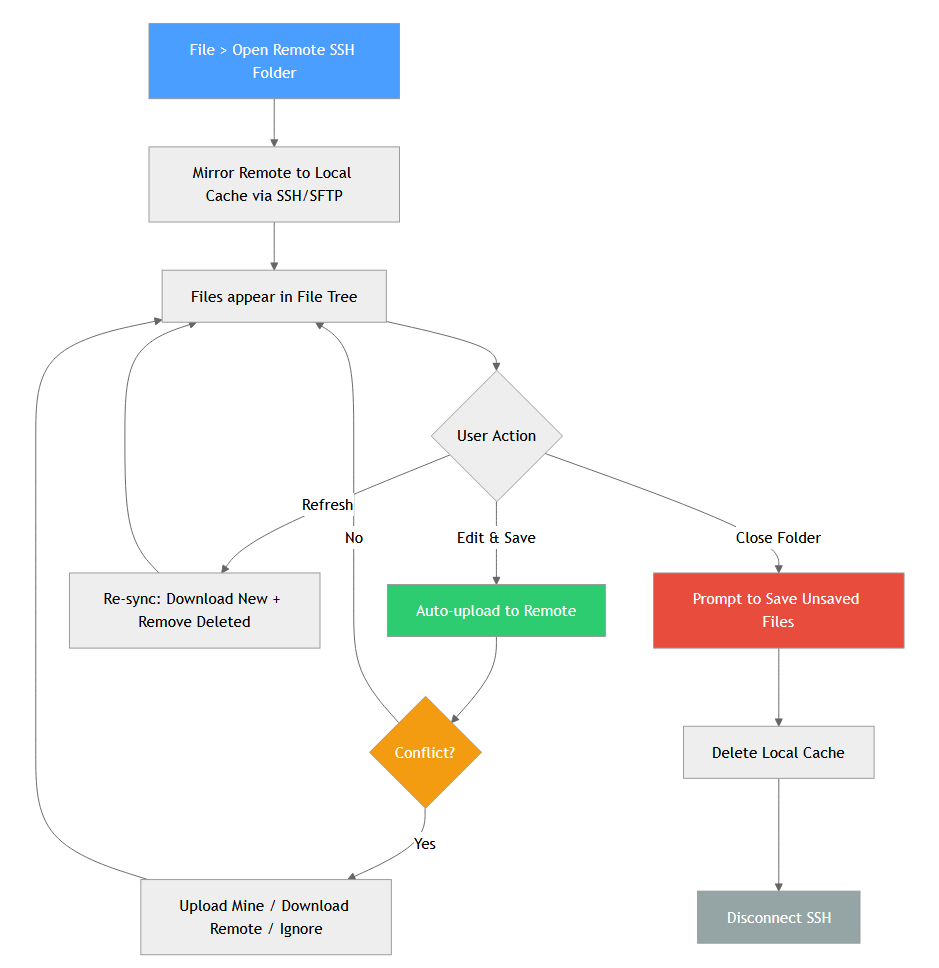
When you connect, QStudio mirrors the remote folder to a local cache at ~/.qstudio/remote-cache/.
- All file types under 10MB are downloaded (no extension filter)
- Excluded folders:
.git,target,node_modules,__pycache__,venv,build,dist - .gitignore: If a
.gitignorefile exists in the remote root, its patterns are respected - Parallel: Files download across 8 simultaneous SFTP channels
A progress dialog shows the download status. You can cancel at any time and work with the partial download.
After sync, if any files were skipped (over size limit, gitignored, or file count limit reached), a summary dialog shows what was excluded and how to adjust settings.
Editing and Saving
Once connected, remote files appear in the file tree like local files. Edit them normally in the editor.
When you save (Ctrl+S), the file is automatically uploaded to the remote server. The status bar at the bottom shows Remote: user@host when connected.
Conflict detection: If the remote file was modified by someone else since your last sync, QStudio shows a dialog with three options:
- Upload Mine — overwrite the remote with your version
- Download Remote — discard your changes and get the remote version
- Ignore — do nothing
QStudio also checks for remote changes when you switch between files. If the remote version is newer and you have no unsaved changes, it downloads the update automatically.
Refresh and Close
Refresh
Click the refresh icon in the file tree panel to re-sync with the remote server. This will:
- Download new and changed files
- Remove locally cached files that were deleted on the remote
- Upload any new local files
- Detect and resolve conflicts
If a deleted remote file is open in the editor with unsaved changes, you'll be prompted before it's removed.
Close
When you switch to a local folder or close the remote connection, QStudio:
- Prompts to save any unsaved remote files (using the standard save dialog)
- Deletes the local cache
- Disconnects the SSH connection
Connection settings (host, port, username, path) are remembered for convenience. The password is cleared for security.
On next startup, if credentials are saved, QStudio auto-reconnects to the last remote folder.
Limits and Settings
| Setting | Default | Description |
|---|---|---|
| Max File Size | 10 MB | Files larger than this are skipped during sync |
| Max Files | 2,000 | Maximum number of files to download. Configurable in Settings > Preferences |
| Max Depth | 20 | Maximum directory depth to traverse. Configurable in Settings > Preferences |
| Parallel Channels | 8 | Number of simultaneous SFTP download channels |
If any limit is exceeded during sync, a notification tells you which limit was hit and how to adjust it.